Having been around for over 30 years, Microsoft Office has managed to become one of the most popular business tools in history. During that time a wide range of tools and operations have accumulated. Mastering these tools can be a shortcut to greater efficiency in the workplace but that takes time, so we thought we’d offer another shortcut: our Microsoft 365 cheat sheet.
Firstly, here’s a quick refresh of what’s in Microsoft 365.
We’ll assume you’re familiar with the usuals: Word, Excel, PowerPoint, Outlook. Beyond those, we have the following.
Microsoft Teams
The collaboration app that keeps team communications organised.
OneDrive
Cloud storage for documents, available on any device.
SharePoint
A more customisable cloud document management and storage system.
Office 365 Planner
A simple way to visually organise your team.
Self-Cleaning Smart Inbox
Sort and prioritise the emails that matter.
Microsoft Forms
Easily create quizzes, surveys and forms.
PowerPoint Laser Pointer
Point out specific details within your PowerPoint presentations.
Office 365 Power Apps
Create custom apps that leverage Office 365’s current toolset.
Microsoft Flow
Streamline processes by connecting applications.
Mobile Collaboration Tools
Additional tools for optimal remote working.
Advanced Cybersecurity Features
Additional security that isn’t provided by your OS.
Secure Device Set-Up
Create device policies with ease and manage their use.
Here’s a rundown of the major applications and how you can use them more efficiently
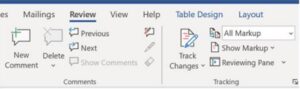
The review tab lets you track any changes anyone makes when collaborating on a document. Combined with the comments function it makes it easy for any team to collaborate whilst being fully aware of the changes being made – and by whom.
The Ctrl+F function is also a serious time saver for when you need to quickly find something within a document. Simply type the word or phrase you’re looking for into the search bar and it will be highlighted in the text.
Using the Smart Lookup feature lets you search the internet for any relevant information to any of the words, phrases, etc that are currently in your spreadsheet. Great for providing further context to any of the data in your spreadsheet.
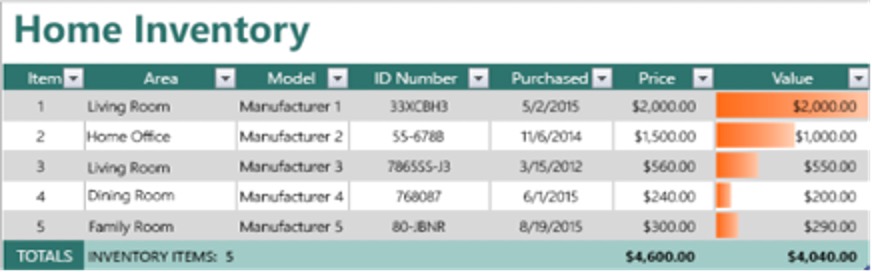
Excel tables are also a great way to analyse and manage groups of related data independently from other rows and columns.
Animation and transitions can take your presentations from good to great. The transitions tab offers a range of ways to spice up your slide show.

The format shape window will also be your best friend. Right click any picture, shape, or object, and a range of design options will appear on the right-hand side.
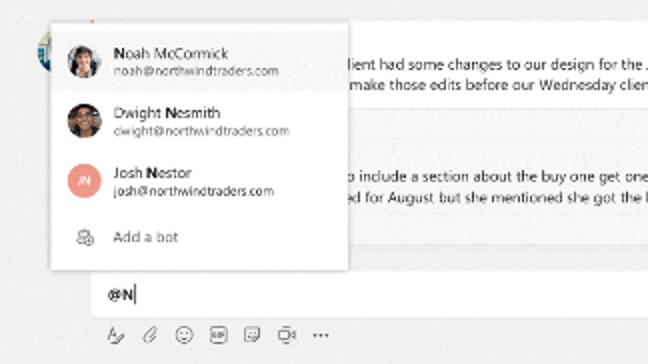
Hit the icons in the top right and you can start making video/audio calls. Just like on social media you can also tag people in conversations using @ + a team member’s name. Typing @team when you’re talking within a team, or @channel when you’re talking in a channel notifies everyone present.
Pinning your preferred channels and chats is also a great way to keep the more important conversations easily accessible.
With this email client + calendar, you can organise your meetings and your inbox. Keep what’s important front of mind by flagging certain emails so they remain on top, and set reminders for when they should show up again.

You can also toggle between your focused primary inbox and your other, less important inbox so you can avoid what’s a lower priority. Then you can also train your inbox to become better at choosing which emails go in which. On Outlook’s calendar, room finder and scheduling assistant are great tools for finding free times and locations to conduct meetings.
Hopefully, this Microsoft 365 cheat sheet has made your life easier. If however, you’re still setting up Microsoft Office, then get in touch and an expert from CHS Networks will be here to help you.